The Visual Editor
This is where you'll spend most of your time — the visual editor is your workspace for building bot flows.
Editor Overview
The editor has four main areas:
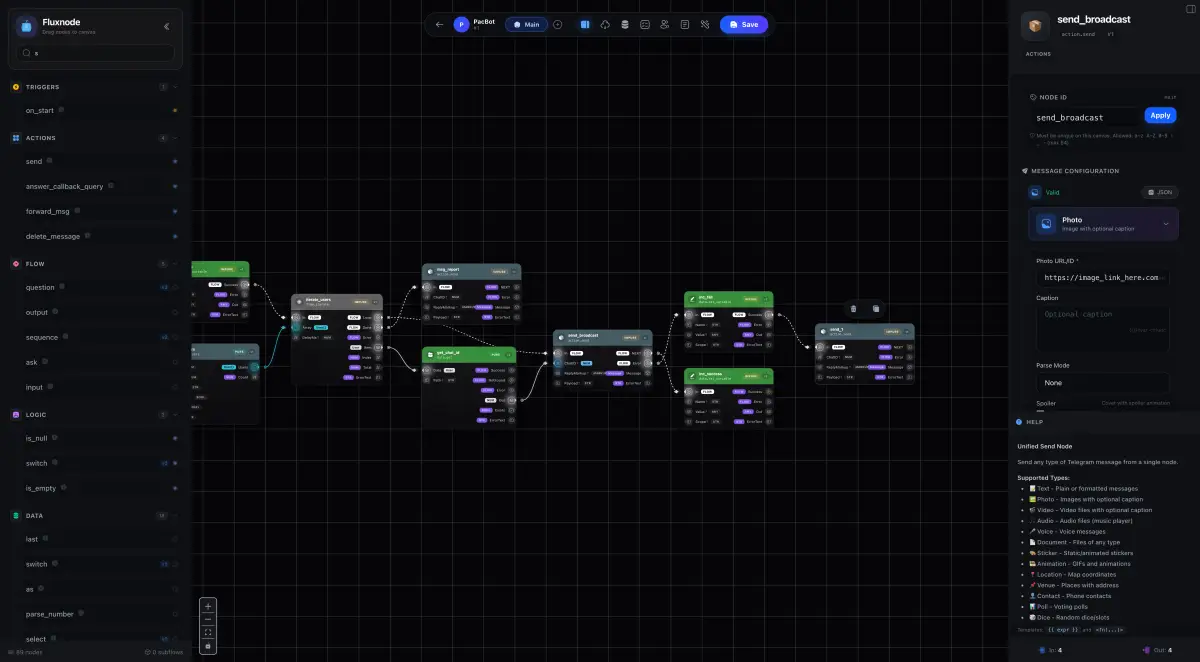
The Sidebar (Left)
This is your toolbox of available nodes, organized into categories:
| Category | Icon | What's Inside |
|---|---|---|
| Triggers | 🎯 | Commands, messages, events |
| Actions | 📤 | Send messages, photos, files |
| Logic | 🔀 | Conditions, switches, routing |
| Flow | 🔄 | Questions, loops, forms |
| Data | 📊 | Transform, filter, variables |
| Utility | 🔧 | Delays, random, debug |
Finding Nodes
- Browse categories by clicking the headers
- Search by typing in the search box
- Drag nodes from the sidebar onto the canvas
The Canvas (Center)
This is where you build your flows. It's an infinite canvas where you can:
Navigation
| Action | How |
|---|---|
| Pan (move around) | Click + drag on empty space, or use scroll wheel |
| Zoom in/out | Scroll wheel, or pinch on trackpad |
| Fit to view | Press F or click the fit button |
Working with Nodes
| Action | How |
|---|---|
| Add a node | Drag from sidebar, or right-click canvas |
| Select a node | Click on it |
| Move a node | Click + drag |
| Delete a node | Select + press Delete or Backspace |
| Duplicate | Select + press Ctrl/Cmd + D |
Working with Wires
| Action | How |
|---|---|
| Create wire | Drag from output dot to input dot |
| Remove wire | Click wire + press Delete, or drag away |
The Config Panel (Right)
When you select a node, its settings appear here.
Common Settings
Most nodes have these settings:
- Title/Name — What you call this node (for your reference)
- Main Configuration — The node's primary settings
- Advanced Options — Extra settings (usually collapsed)
Required vs Optional
- Required fields have a red asterisk *
- Optional fields can be left empty
Missing Required Fields
If you forget a required field, the editor will highlight it in red when you try to save.
The Bottom Bar
At the bottom of the editor, you'll find:
Analysis Panel
Shows warnings and errors in your flow:
- 🔴 Errors — Must fix before saving
- 🟡 Warnings — Should review, but not blocking
- 🟢 All good! — Your flow is valid
Status Bar
Shows:
- Current zoom level
- Number of nodes
- Last saved time
Keyboard Shortcuts
Learn these to work faster:
| Shortcut | Action |
|---|---|
Ctrl/Cmd + S | Save |
Ctrl/Cmd + Z | Undo |
Ctrl/Cmd + Y | Redo |
Ctrl/Cmd + D | Duplicate selected |
Delete | Delete selected |
F | Fit view to all nodes |
Escape | Deselect all |
Saving Your Work
BotGami auto-saves your work, but you can also:
- Press
Ctrl/Cmd + Sto save manually - Click the Save button in the toolbar
Deploy on Save
When you save, your changes go live immediately. There's no separate "deploy" step — users see updates right away!
Tips for Beginners
Getting Comfortable
- Start simple — Begin with 2-3 nodes
- Use the minimap — It helps with larger flows
- Save often — Form the habit early
- Check the analysis panel — Fix errors as you go
Next Steps
- How Bots Respond → — The behind-the-scenes
- Node Reference → — Explore all nodes